📱📱 Multi-Device Support
The app supports multiple devices for a single account in Cloud or Private Server modes, distributing messages across all connected devices.
➕ Adding a Device
- Open the app on the new device
- Activate Cloud Server
- Tap Start Service - if the device is not registered yet, a dialog opens with three tabs: Sign Up (default), Sign In, and By Code
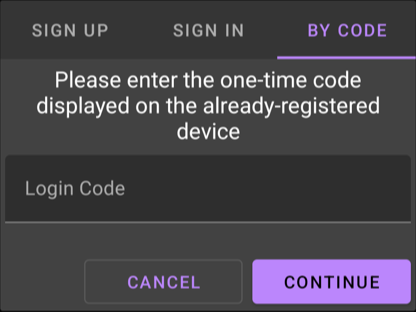
The dialog cannot be dismissed by tapping outside; tap Cancel to abort without starting the service.
Tip
Use this method for trusted devices, which will have full access to the account.
Steps 📋
- Open the registration dialog (see above)
- Choose the Sign In tab
- Enter username and password
- Confirm to join the account
- Wait for Cloud Server information in the Home tab
Tip
Use this method for untrusted devices, which will only have limited access to the account.
Generate Code 🔑
- On an already-registered device:
 Settings → Cloud Server → Login code
The generator is visible only while the device is registered. - Wait for code to appear
- Long press to copy
Apply Code 📲
- Open the registration dialog (see above)
- Choose the By Code tab
- Enter the code
- Confirm with "Continue"
📨 Message Distribution
⚙️ Device Management
API Endpoints
Device Removal Warning
Deleting a device will remove all associated messages, including pending ones. This action cannot be undone.